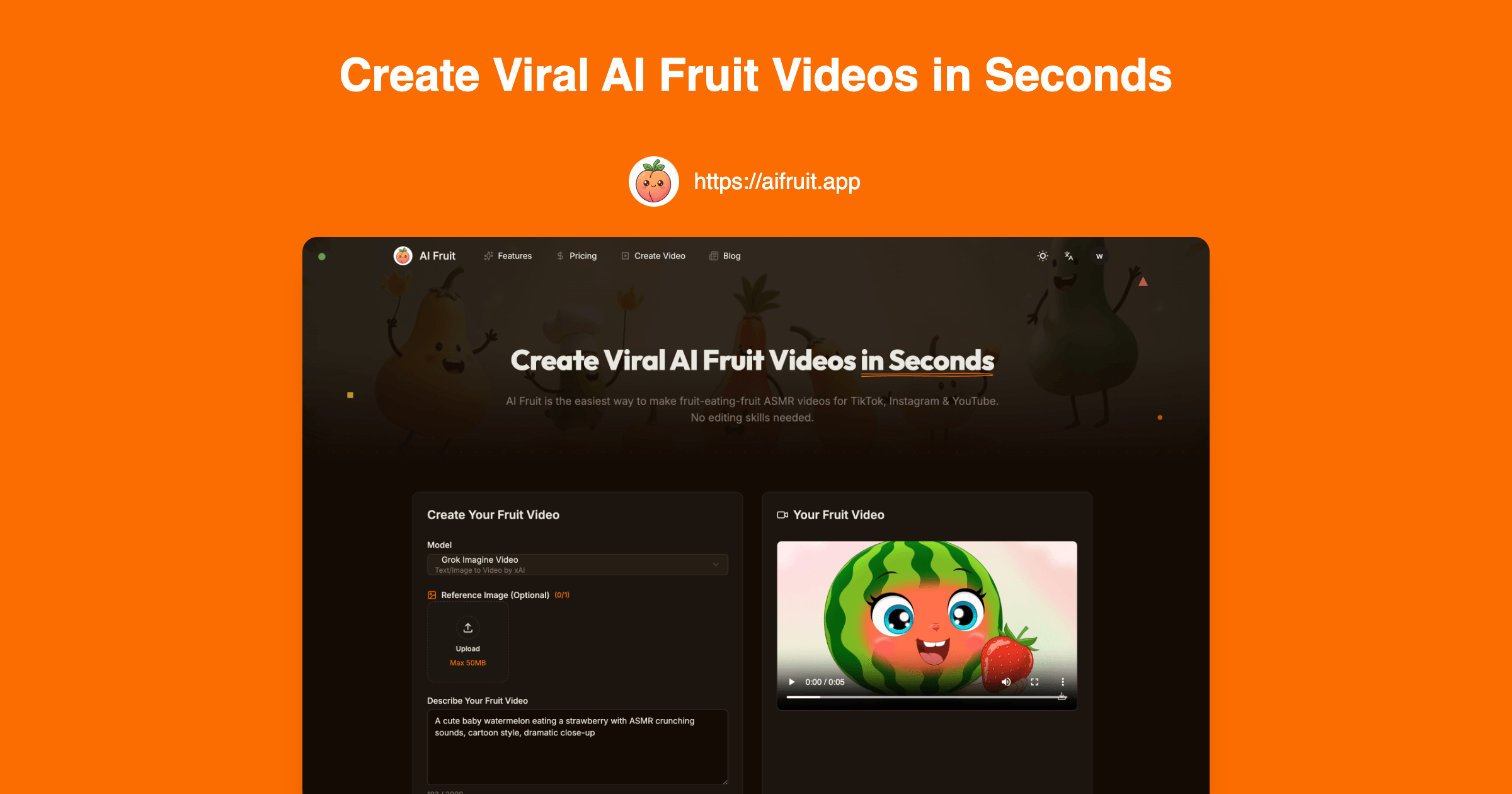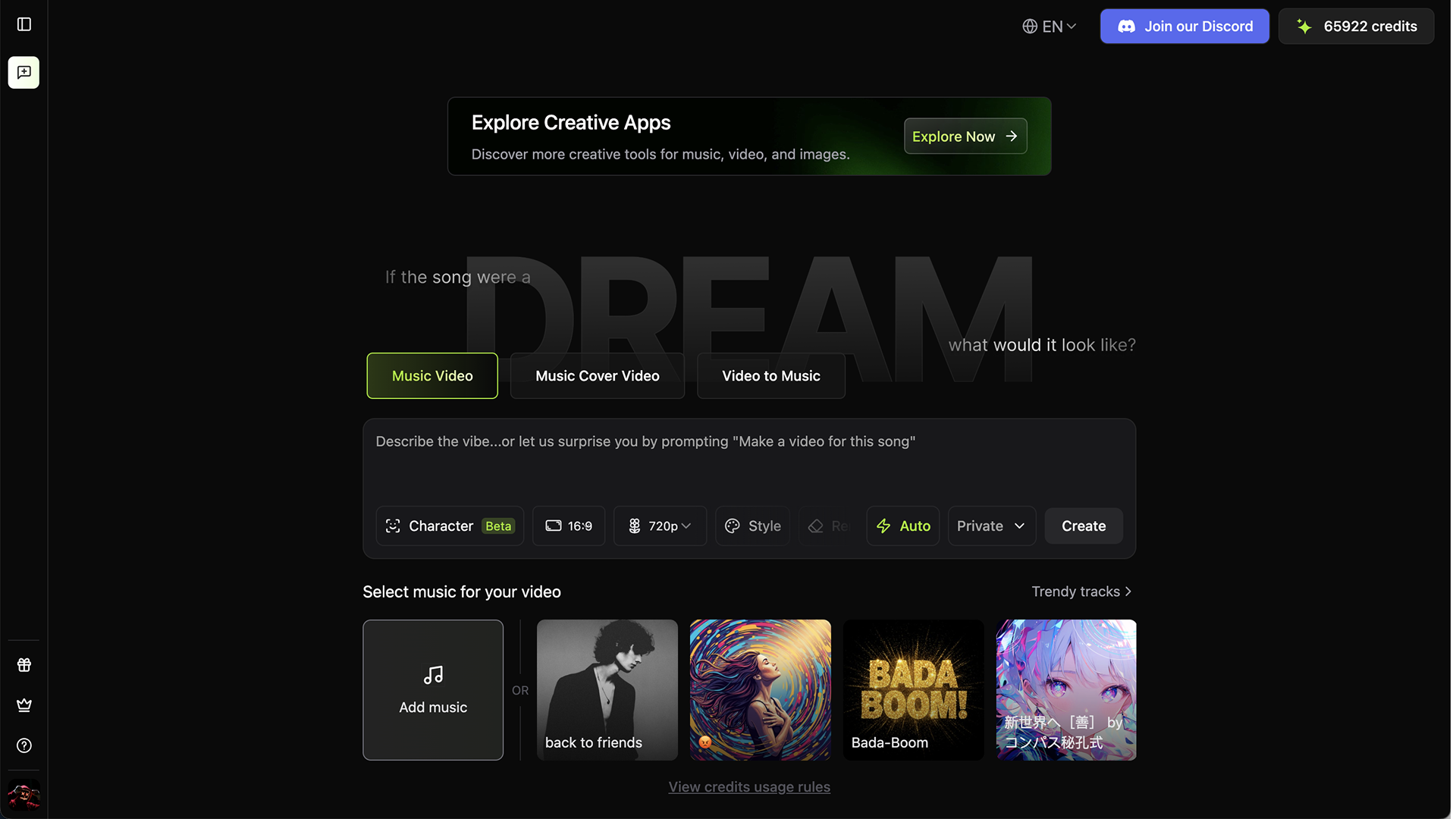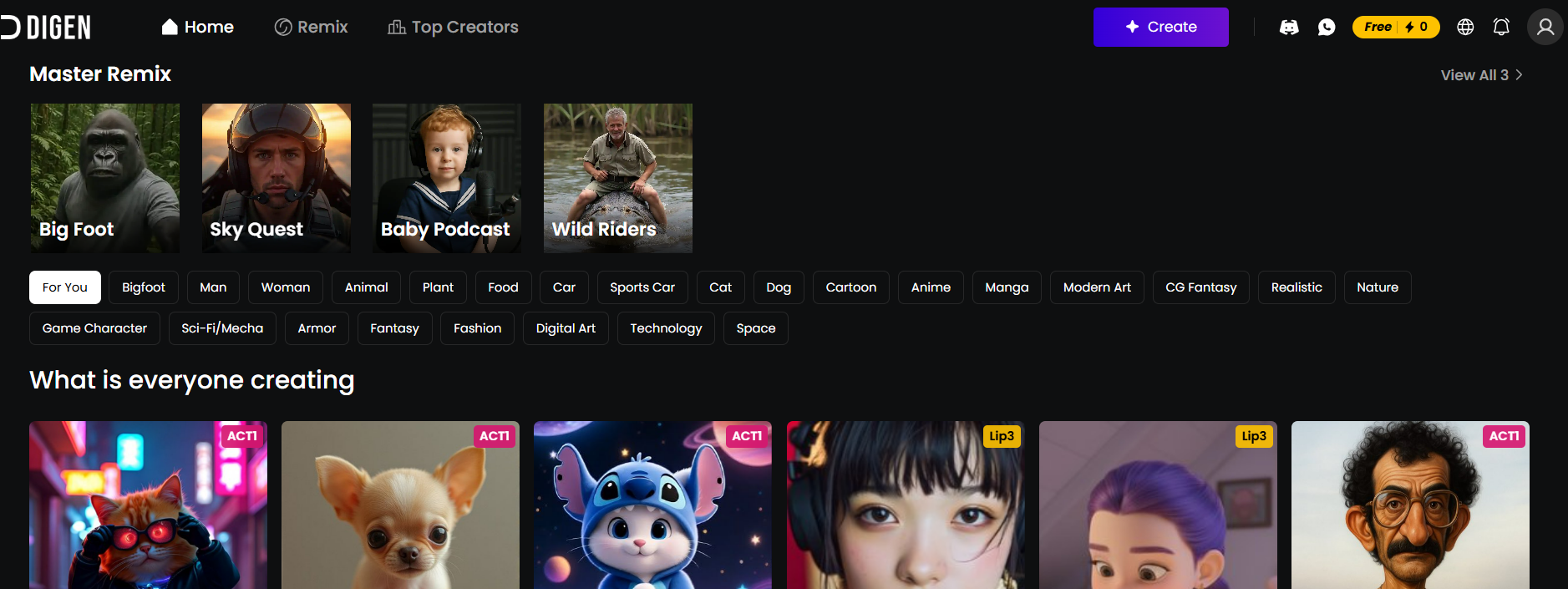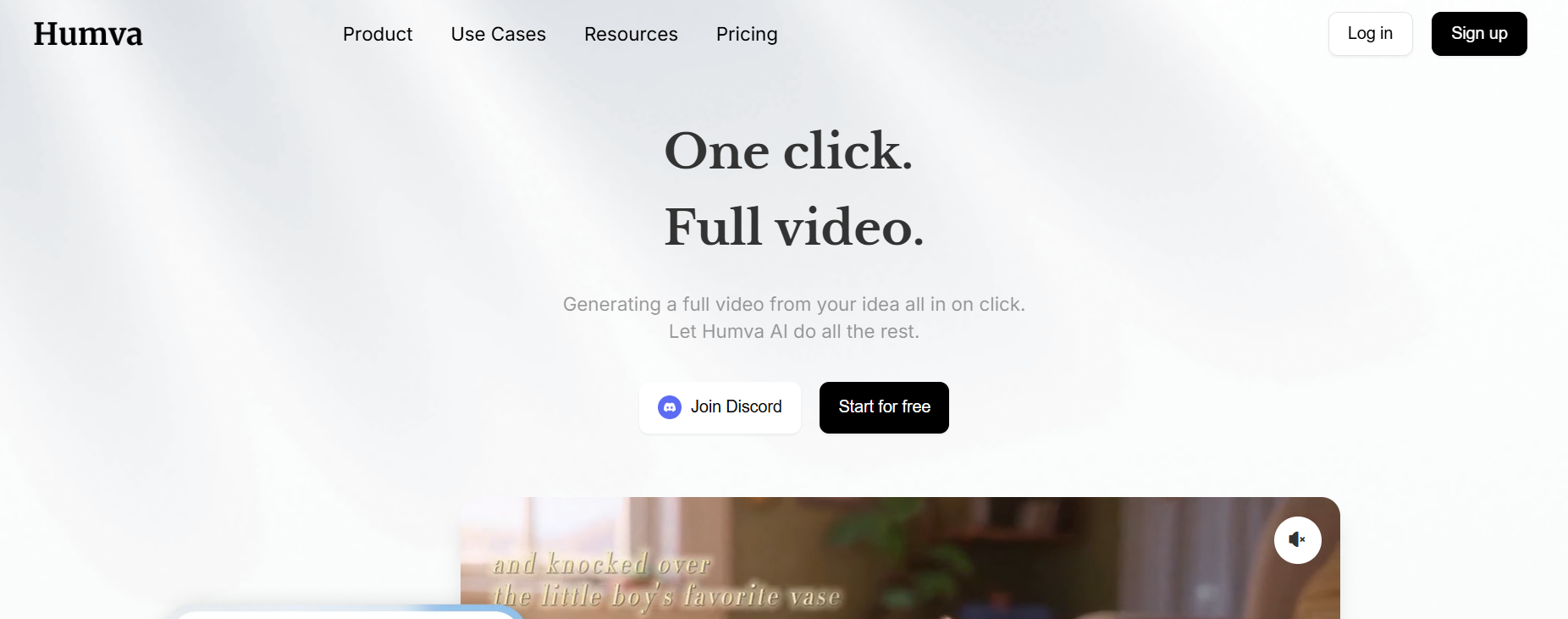
Image to Video AI: Transform Photos into Videos Instantly!
Bring your still images to life with Image2Video AI, the best free AI tool to convert pictures into dynamic, cinematic videos. Whether you want to make engaging social media clips, short films, or creative visual stories, our AI photo-to-video converter makes it effortless.
With just a few clicks, Image2Video AI turns your ideas into motion — blending creativity and AI technology like never before.
No prior experience is needed—just upload your image, describe your vision, and let AI bring it to life!
Fast Facts
- Input types: Single image, image sequences, optional text prompts for motion direction
- Output: Short MP4/WebM clips (typically 4–12 seconds) in 720p–1080p resolution
- Typical features: Camera motion (zoom, pan, orbit), character animation (blink, walk, dance), transitions, optional background music
- Best for: Social content creators, digital marketers, e-commerce brands, meme pages, portrait animation
What is Image2Video AI?
Image2Video AI refers to artificial intelligence systems that generate video content from still images. Unlike traditional video editing where you manually keyframe motion, these tools use machine learning models (often diffusion-based or transformer architectures) to predict and synthesize realistic movement.
You upload a photo, describe the desired motion or select a preset, and the AI generates frames that create the illusion of motion—turning your static image into a dynamic video clip ready for publishing.
Why Choose Image2Video AI?
1. Instant AI Video Creation
Upload your photos, select a style, and let the AI handle the rest.
Get a full video within seconds—no need for editing or experience.
2. Free & Easy to Use
Start creating right away. No signup or payment required to generate basic videos.
Upgrade for pro effects and faster rendering.
3. Cinematic Effects & Styles
Choose from AI-powered filters, transitions, and dynamic motion effects that bring your visuals to life.
From slow zooms to camera pan effects, every frame feels professionally directed.
4. Create in Any Genre
Want to make an AI dance video, a romantic montage, or a vintage animation?
Choose a theme, and Image2Video AI adapts the tone, colors, and pacing automatically.
Key Features:
- AI-Powered Animation – Convert images into videos with realistic motion.
- Multiple Video Effects – AI Dance, AI Hug, AI Kiss, AI Muscle, Old Photo Animation, and more.
- User-Friendly Interface – No editing skills required; simply upload and generate.
- Customization Options – Add prompts, adjust motion styles, and enhance creativity.
- Fast & Efficient – Generate videos in minutes and share them instantly.
- Higher Quality for Subscribers – Upgrade for premium effects and enhanced resolution.
Image to Video AI Tools – Technical Specs & Pricing Comparison
| Tool | Starting Price | Credits/Month (Free) | Model Technology | Camera Controls | Export Formats |
| Image2Video.ai | $12/month | 50 credits | Veo, proprietary | Pan, zoom, orbit, custom | MP4, WebM |
| Runway Gen-3 | $15/month | 125 trial credits | Gen-3 Alpha Turbo | Manual keyframes, motion brush | MP4, MOV, GIF |
| Pika Labs | $10/month | 30 generations/day | Pika 1.5 | Basic presets, camera motion | MP4, GIF |
| Haiper AI | Free (unlimited) | Unlimited | Open-source diffusion | Preset animations only | MP4 |
| Leonardo Motion | $12/month | 150 tokens | Leonardo Phoenix | Directional prompts, intensity slider | MP4, WebM, PNG sequence |
| Viggle AI | $9.99/month | 20 generations | Custom character engine | Character-focused, pose control | MP4, transparent BG option |
| Genmo | $10/month | 100 fuel/day | Genmo Replay v0.2 | Text-guided motion, loop mode | MP4, seamless loops |
| Kaiber AI | $5/month | 7 minutes/month | Kaiber 3.0 | Transform strength, evolve | MP4, 4K available |
How Image to Video AI Works
Step 1: Upload Your Image(s)
Drag and drop your pictures or select from your device. Supported formats include JPG, PNG, and HEIC.
Step 2: Select a Style
Choose from popular video themes like cinematic, twerk, fantasy, realistic, or anime.
Step 3: Add Prompts or Captions
You can guide the AI with text prompts like:
“A futuristic robot walking in neon Tokyo”
“Two people dancing in the rain”
“Ocean waves crashing with dramatic lighting”
Step 4: Generate Your Video
Click “Generate” and let the Image to Video AI engine create a smooth, lifelike video animation in seconds.
Step 5: Download or Share
Download your video in HD or share directly to TikTok, Instagram, or YouTube Shorts.
How to turn an image into a video with AI (step-by-step)
Follow this universal workflow that works across most image-to-video platforms:
Step 1: Select your source image
Choose a high-resolution photo (minimum 720p recommended). Works best with clear subjects—portraits, products, landscapes, or illustrations. Avoid heavily compressed or blurry images.
Step 2: Upload to your chosen tool
Navigate to the “Image to Video” or “Generate” section. Most platforms support drag-and-drop upload. Some tools let you paste image URLs directly.
Step 3: Define motion or select a preset
Either write a text prompt describing movement (“camera zooms in slowly while subject blinks”) or pick from templates—common presets include pan left/right, zoom in/out, orbit 360°, character walk, or breathing effect for portraits.
Step 4: Configure duration and quality
Set video length (typically 3–12 seconds) and resolution (720p for quick tests, 1080p for final delivery). Some tools offer aspect ratio options—vertical 9:16 for Reels/TikTok, square 1:1 for Instagram feed.
Step 5: Generate and review
Hit generate and wait 30 seconds to 2 minutes depending on complexity. Preview the result. If motion looks unnatural, refine your prompt—be more specific about speed (“very slowly”) or subject focus (“keep face centered”).
Step 6: Download and publish
Export the final MP4. Most tools let you download directly or save to cloud storage. Upload to your social platform, website, or ad campaign. Remember to check usage rights if using the video commercially.
Key use cases for image to video AI
Social media and UGC content
Transform static posts into eye-catching Reels, TikTok videos, or YouTube Shorts. Add motion to memes, reaction images, or behind-the-scenes photos. The movement increases watch time and engagement compared to still images in feeds.
E-commerce and product demos
Animate product photography into 360-degree spins, zoom reveals, or lifestyle scenes. Show a watch rotating, a shoe from multiple angles, or a skincare product with subtle lighting changes—all without a photo studio or videographer.
Portrait and old photo restoration
Bring vintage family photos to life with subtle breathing, blinking, or gentle head turns. Popular for genealogy projects, memorial videos, or social nostalgia content. Tools like MyHeritage’s Deep Nostalgia pioneered this niche.
Illustrations and creative art
Animate digital paintings, comic panels, or AI-generated artwork. Make characters walk through scenes, add parallax depth to landscapes, or create looping animated backgrounds for streams and presentations.
Is image to video AI free?
Yes, with limitations. Most platforms offer free tiers with credits or daily generation limits. Common restrictions include:
- Watermarks: Free versions often add small branding (removable via paid plans)
- Duration caps: 3–5 seconds for free, 10+ seconds for subscribers
- Resolution limits: 720p free, 1080p or 4K for premium
- Monthly quotas: 10–50 generations per month before requiring payment
Fully free options: Haiper AI and Pika’s basic tier provide unlimited low-resolution generations with minimal restrictions. For commercial or watermark-free use, expect to pay $10–30/month for starter plans on Runway, Leonardo, or Image2Video.ai.
Suggested Reads:
- AI Video Generator from Image: Transform Photos into Stunning Videos
- AI Image-to-Video Generators: A Game-Changer for Marketers
Best for:
- Content creators looking to animate static images
- Social media users wanting to create engaging video content
- Businesses needing quick and professional AI-generated videos
- Artists and designers exploring AI-driven motion graphics
- Anyone wanting to bring old photos to life with animation
- Marketers seeking unique video solutions for branding
- Casual users who want to experiment with AI-generated visuals
Conclusion
If you’ve ever wanted to see your photos come alive, Image2Video AI is your perfect creative partner.
Transform any image into a cinematic story with one click — no editing, no hassle, just imagination.
Start creating now!
Disclaimer: Please refer to the website for the most accurate and current pricing details and service offerings.
Try nowFAQs
How long can the videos be?
Free tiers typically produce 3–5 second clips. Paid plans unlock 10–30 seconds. For longer content, consider generating multiple clips and stitching them in a video editor.
Can I use these videos commercially?
Check each platform's terms. Most allow commercial use on paid plans. Free tier licenses may restrict monetization or require attribution. Always review usage rights before publishing client work.
Do I need video editing skills?
No. These tools handle frame generation automatically. You only provide the image and describe motion—no timeline editing, keyframes, or After Effects knowledge required.
Promote Image2Video Ai

1 Review for Image2Video Ai


Image2Video.ai makes animation effortless! Upload an image, add a prompt, and watch it come to life. Perfect for creators, marketers, and anyone wanting AI-driven motion effects. Fast, fun, and impressive!
Write a review
 Own or work here?
Claim Now!
Claim Now!
Own or work here?
Claim Now!
Claim Now!

-
$99.00
/ Per Listing
-
Duration : Unlimited days
Lorem ipsum dolor sit amet, lorem sit.
- Verified check mark
- Indexed on Google
- FAQ Section
- Tags or keywords
- Free newsletter feature
- Published within 2 days
- Long texts and media
- Social Links
- Lead Form
- Announcement Feature
- Deals/Offers/Discounts Feature
-
$49.00
/ Per Listing
-
Duration : Unlimited days
Lorem ipsum dolor sit amet, lorem sit.
- Verified check mark
- Indexed on Google
- FAQ Section
- Tags or Keywords
- Free newsletter feature
- Published within 4 days
Claim request is processed after verification..
Featured AI Tools
-
-
-
-
-