


AI Infographic Generator: Turn Ideas into Visuals in Seconds
- AI
- September 10, 2025
- No Comments
Ever typed one sentence… and got a full, professional-looking AI infographic? I did. And it took me less time than writing the post you’re reading now.
No design degree. No hours tweaking Canva. Just one AI tool, a single idea, and a few clicks.
If you’re an agency, founder, marketer, or content creator looking to turn raw ideas into scroll-stopping visuals, you’re going to want to bookmark this.
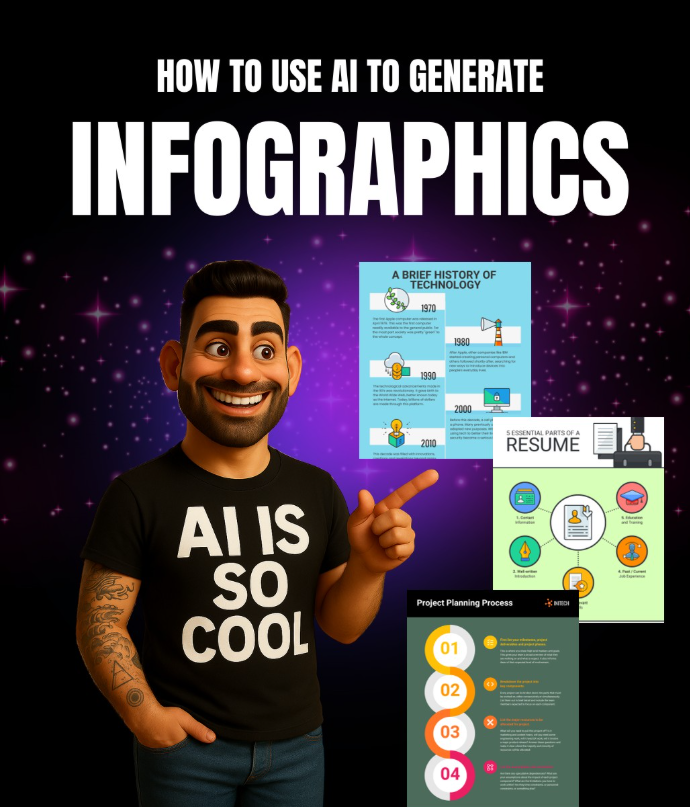
Source: Linkedin User
What Is an AI Infographic Generator?
An AI infographic generator is a tool that transforms text prompts into ready-to-use visual designs. It automates layout, color schemes, icons, and formatting — meaning you skip the design learning curve and jump straight to publishing.
An AI infographic generator uses artificial intelligence to instantly convert a text prompt into a complete infographic, including layout, visuals, and design elements — no design skills required.
How to Create an Infographic with AI (Step-by-Step)
Here’s exactly how I did it with Venngage:
- Go to Venngage
Visit the site and head to the AI Tools section. - Select the Infographic Generator
Find it under the “Products” menu. - Enter Your Prompt
Type a single sentence describing what you need — for example: “5 ways AI is changing marketing in 2025.” - Hit “Generate”
In seconds, you’ll have a polished infographic draft. - Customize (Optional)
- Swap icons
- Change colors
- Adjust text
Or, if you’re in a rush, use the auto-generated design as-is.
- Swap icons
Why This Works for Agencies, Founders, and Marketers
AI-generated infographics save time, budget, and headaches:
- Faster content creation – Publish visuals in minutes.
- No design bottleneck – Skip the queue for your in-house designer.
- Consistent branding – Templates make it easy to match your style.
- Repurposing potential – Use in LinkedIn carousels, pitch decks, blog posts, or sales one-pagers.
And because infographics drive 3x more engagement than text-only posts (Venngage, 2024), you’re getting both speed and reach.
Real Example: My One-Sentence Infographic
I typed: “Benefits of AI-powered marketing for small businesses.”
Venngage gave me:
- Headline
- Icons for each point
- Color-coordinated layout
- Shareable PNG download
Total time: under 3 minutes.
Pro Tips for Getting Better AI Infographics
- Be specific in your prompt – Include numbers, tone, and audience.
- Choose the right format – Vertical for Pinterest, wide for LinkedIn.
- Use it as a base – Tweak fonts, add your logo, update colors.
- Combine with AI copy tools – Draft your infographic text with ChatGPT, then feed it to Venngage.
Suggested Reads:
Conclusion
If you’ve ever felt “stuck” turning an idea into a visual, an AI infographic generator can be your secret weapon. In just minutes, you can create designs that look like they took hours.
Whether you’re upgrading your LinkedIn carousel, pitching to clients, or boosting your blog’s visual appeal, this is one of the fastest ways to level up your content game.
Explore more AI tools on TheAISurf.
FAQs
Q: Can I use AI-generated infographics commercially?
Yes, but check each platform’s license terms before publishing.
Q: Do I need to edit the AI output?
Not always. But customizing can improve brand alignment and accuracy.
Q: What’s the best AI infographic generator?
Venngage is a top choice, but tools like Canva’s Magic Design and Piktochart are also worth exploring.