


Create Presentations in Minutes with ChatGPT
- Presentation
- October 3, 2025
- No Comments
Stop wasting countless hours on boring slide decks. Seriously, we’ve all been there—staring at a blank PowerPoint slide, fighting formatting, and wondering if Comic Sans is still illegal. Here’s the thing: you don’t need to struggle anymore.
With ChatGPT + Gamma AI, you can create professional-looking presentations in minutes, not days. In this guide, I’ll show you the exact steps, the prompts that work, and the tools that make your slides look like they were designed by a pro—even if you’re running on 3 cups of coffee and zero design skills.
Source: Linkedin User
Create Presentations in Minutes
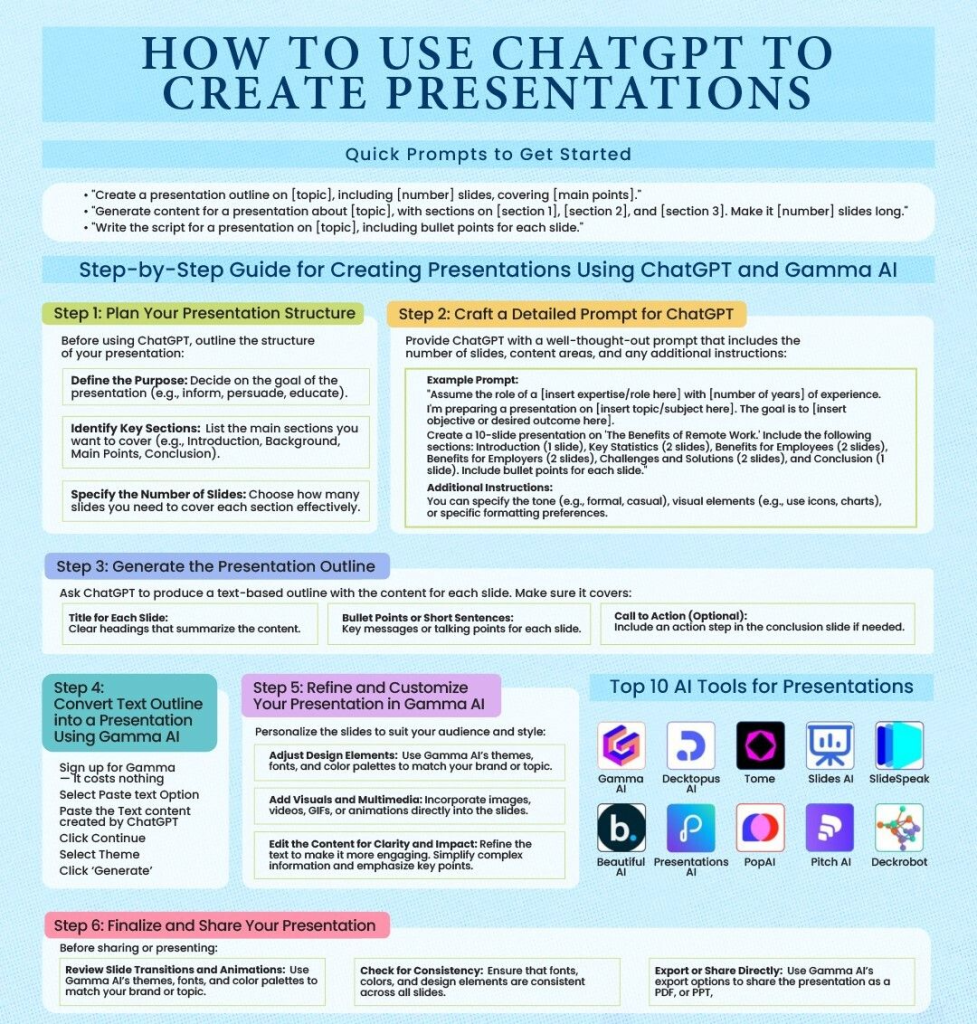
You can create presentations in minutes with ChatGPT by writing a detailed prompt that specifies slide count, sections, and tone. ChatGPT generates the text outline, which you can import into Gamma AI to instantly design professional slides. Then, refine the visuals, add charts or icons, and finalize for sharing.
Why Use ChatGPT for Presentations?
- Save hours: No need to start from scratch.
- Clarity: ChatGPT structures your ideas into logical sections.
- Customization: You control tone, format, and design hints.
- Integration: Works seamlessly with design tools like Gamma AI.
Step-by-Step Guide: From Prompt to Polished Slides
Step 1: Plan Your Presentation
Before jumping into ChatGPT, do some quick prep:
- Define the purpose – Is your goal to educate, persuade, or pitch?
- Identify key sections – e.g., Introduction, Data, Benefits, Challenges, Conclusion.
- Decide slide count – Short (5–7 slides) for pitches, longer (10–15) for reports.
Step 2: Write a Prompt That Works
ChatGPT is only as good as the instructions you feed it. Use prompts like:
- “Create a presentation outline on remote work, 10 slides, covering: Introduction, Key Statistics, Benefits for Employers (2 slides), Benefits for Employees (2 slides), Challenges + Solutions (2 slides), Conclusion.”
- “Generate bullet-point content for a marketing strategy presentation, with sections: Research, Target Audience, Campaign Ideas, Budget, and Next Steps.”
Pro tip: Add tone preferences (formal, casual, storytelling), and request visuals (charts, icons).
Step 3: Generate a Text Outline
Once ChatGPT gives you the slide-by-slide content, check for:
- Key messages per slide
- Logical flow
- Optional CTA on last slide
Step 4: Import Into Gamma AI
Here’s where the magic happens:
- Copy ChatGPT’s text outline.
- Open Gamma AI.
- Select “Paste text” and hit continue.
- Pick a theme.
- Click Generate.
Boom—your skeleton presentation just turned into a sleek deck.
Step 5: Refine & Customize
Even AI needs a little human touch. Adjust:
- Fonts, colors, and themes
- Charts, icons, and images
- Slide order or emphasis
Step 6: Finalize and Share
Export as PDF, PowerPoint, or share directly with a link. You’ll look like you spent hours… But your secret? It took minutes.
Recommended Reads:
Stay Interviews: The Secret to Retaining Top Talent
7 Mindset Traps That Cause Burnout (and How to Escape)
Top 10 AI Tools for Presentations
While ChatGPT + Gamma AI is the power duo, here are other tools to check out:
- Beautiful.ai – Smart templates.
- Canva – Easy drag-and-drop design.
- Tome – Storytelling-focused AI decks.
- Pitch – Collaboration + AI content.
- Prezi AI – Dynamic, zooming slides.
- Slidebean – Startup pitch-focused.
- Decktopus – Fast auto-generated slides.
- Visme – Great for infographics.
- SlidesAI.io – Turns text into Google Slides.
- Zoho Show with Zia AI – Business-focused AI decks.
Conclusion
Creating presentations no longer has to drain your time or sanity. With ChatGPT for content and Gamma AI for design, you can whip up professional decks in under 15 minutes.
Want more time-saving hacks? Explore more AI tools on TheAISurf and make AI do the heavy lifting while you focus on the big ideas.
FAQs
Q1: Can ChatGPT design slides directly?
No. ChatGPT creates text outlines, but you’ll need a tool like Gamma AI, Canva, or Beautiful.ai for design.
Q2: Is Gamma AI free to use?
Yes, Gamma offers a free tier, but advanced customization and exports may require a paid plan.
Q3: How detailed should my ChatGPT prompt be?
The more specific, the better. Always include topic, slide count, sections, and tone.