


How to Create Infographics with AI (Step-by-Step)
- AI
- October 2, 2025
- No Comments
I’ll let you in on a secret: you don’t need Photoshop wizardry or expensive design teams to make infographics that pop. AI tools are now so good that a few prompts can rival professional layouts. I’ve been experimenting with this workflow, and it’s a game-changer for marketers, founders, and anyone who wants to stand out on LinkedIn or pitch decks.
Here’s my no-fluff, step-by-step process for creating infographics with AI—fast, affordable, and scroll-stopping.
Why Use AI for Infographics?
Infographics are still one of the most shared visual formats online (Content Marketing Institute, 2024). They break down complex ideas into digestible, memorable visuals. But the catch? Designing them used to eat hours. AI shortcuts that to minutes.
- Cost-effective: No need for pricey agencies.
- Time-saving: Generate multiple drafts instantly.
- Customizable: Remix until it feels right for your brand.
And here’s the kicker: AI gets you 80% of the way there. Your human tweaks finish the magic.
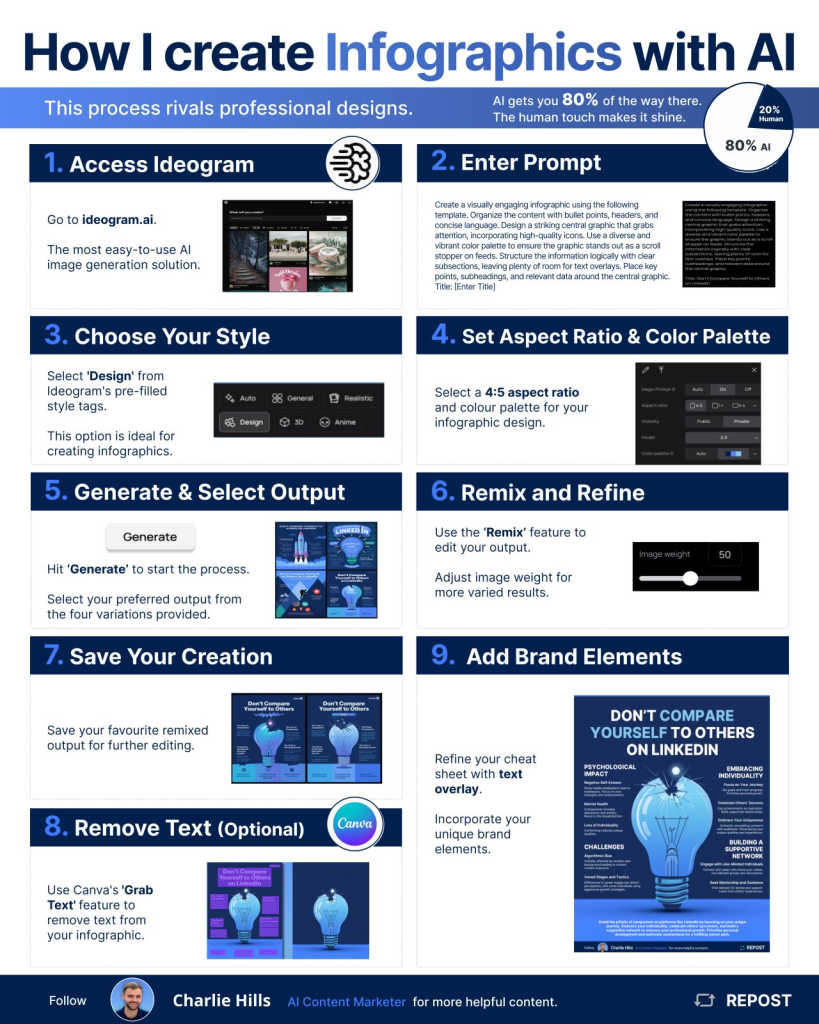
Step-by-Step: How I Create Infographics with AI
You can create professional-looking infographics with AI by using tools like Ideogram. Enter a structured prompt, choose a design style, set your aspect ratio and color palette, then generate, refine, and remix until you land on a standout visual. Add your brand elements at the end for a polished, custom look.
1. Access Ideogram
Head over to Ideogram—hands down the easiest AI infographic creator I’ve found.
2. Enter the Prompt
Here’s my go-to infographic prompt template:
“Create a visually engaging infographic using bullet points, headers, and concise language. Include a central graphic that grabs attention, with vibrant colors and logical subsections for text overlays. Title: [Insert Title].”
3. Choose Your Style
Select ‘Design’ from Ideogram’s style tags. This preset nails the infographic look.
4. Set Aspect Ratio & Color Palette
Think square for social media, wide for presentations. Choose a palette that fits your brand vibe.
5. Generate Images
Hit Generate. You’ll get four variations instantly.
6. Select Your Output
Pick the strongest draft as your foundation.
7. Remix & Refine
Play with image weight to see fresh iterations. Each remix gets closer to “that’s it.”
8. Save Your Creation
Download your favorite design for edits.
9. Remove Text (Optional)
Use Canva’s “Grab Text” feature to clean overlays. This gives you flexibility to add copy in your font.
10. Add Brand Elements
Now drop in your logo, tagline, or brand icons. This step transforms a generic design into a branded asset.
Quick Tips for Better AI Infographics
- Keep the copy short and punchy.
- Use icons instead of paragraphs.
- Stick to 2–3 core colors for consistency.
- Always preview on mobile, since most people see it on their phones.
Relevant Reads:
80+ AI Tools to Finish Work in Minutes
AI Infographic Generator: Turn Ideas into Visuals in Seconds
Conclusion
AI-powered infographic creation is fast, simple, and surprisingly professional. Tools like Ideogram take care of the design heavy-lifting, while you bring in the finishing details that align with your brand.
If you want to level up your content game without spending hours in design tools, this workflow is worth trying.
Explore more AI tools on TheAISurf.
FAQs
Q1: What is the best AI tool for infographics?
Ideogram is one of the most beginner-friendly AI infographic makers. Canva, MidJourney, and Figma plugins also work, but Ideogram excels for design-first outputs.
Q2: Can AI-generated infographics be used commercially?
Yes, most AI design tools allow commercial use, but always check the license terms of the specific platform.
Q3: How do I make AI infographics look unique?
Start with an AI draft, then remix, refine, and overlay your brand elements. That human touch is what prevents generic results.